
Chronicles of Crime: 1900
2021
Become journalist Victor Lavel, gather evidence, question suspects, and solve intricate puzzles in 1900s Paris.
90
minutes
1 - 4
player(s)
12+
Medium Light

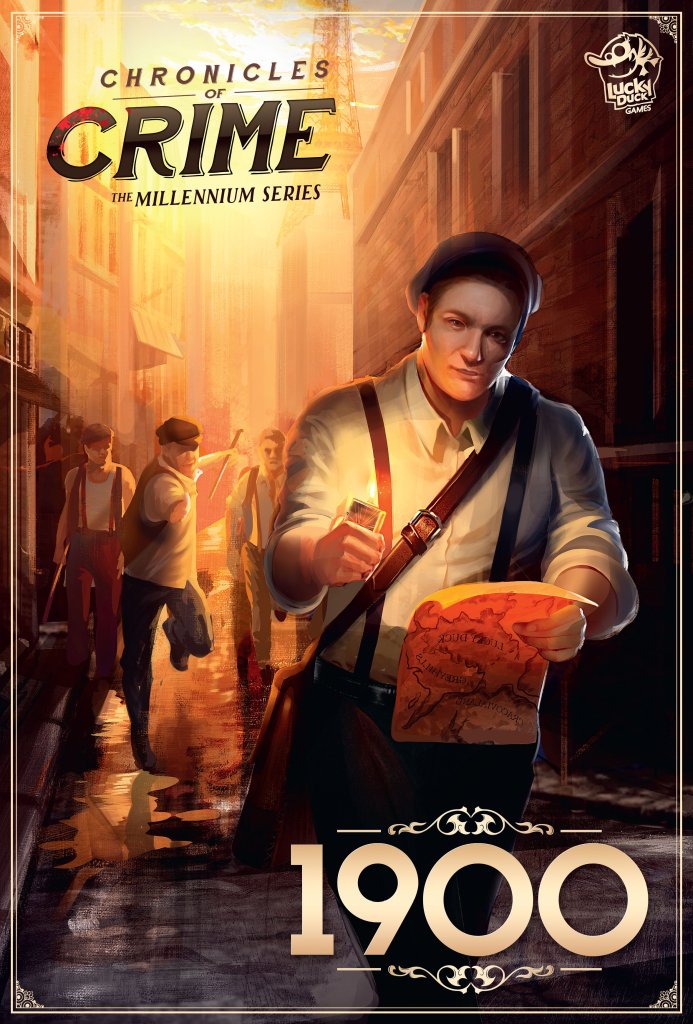
About this board game
Chronicles of Crime: 1900 is a standalone investigative game for 1–4 players, with a play time of approximately 90 minutes. Set in Paris in 1900, it places you in the middle of the Belle Époque, a period filled with major events, ambitious projects, and dangerous mysteries.
You take the role of Victor Lavel, a young journalist working for a major newspaper. As a member of the Lavel family—famous for solving crimes since the Middle Ages—you are especially interested in murders, kidnappings, and robberies. Your profession helps you learn about cases quickly, while your wits may help you identify the perpetrator first.
Investigations combine the established Chronicles of Crime system with escape-room-style puzzles built into each scenario. Collect evidence, interrogate suspects, and examine the details of each crime scene while working to overcome challenges such as:
- Finding the correct combination to open a safe
- Deciphering an encrypted message
- Tracing a suspect by navigating a map
When a mystery proves difficult, you can ask your colleague Charlotte for help. She writes the newspaper’s “Puzzles and Riddles” column and can provide a hint about the puzzle or investigation you are struggling to solve.
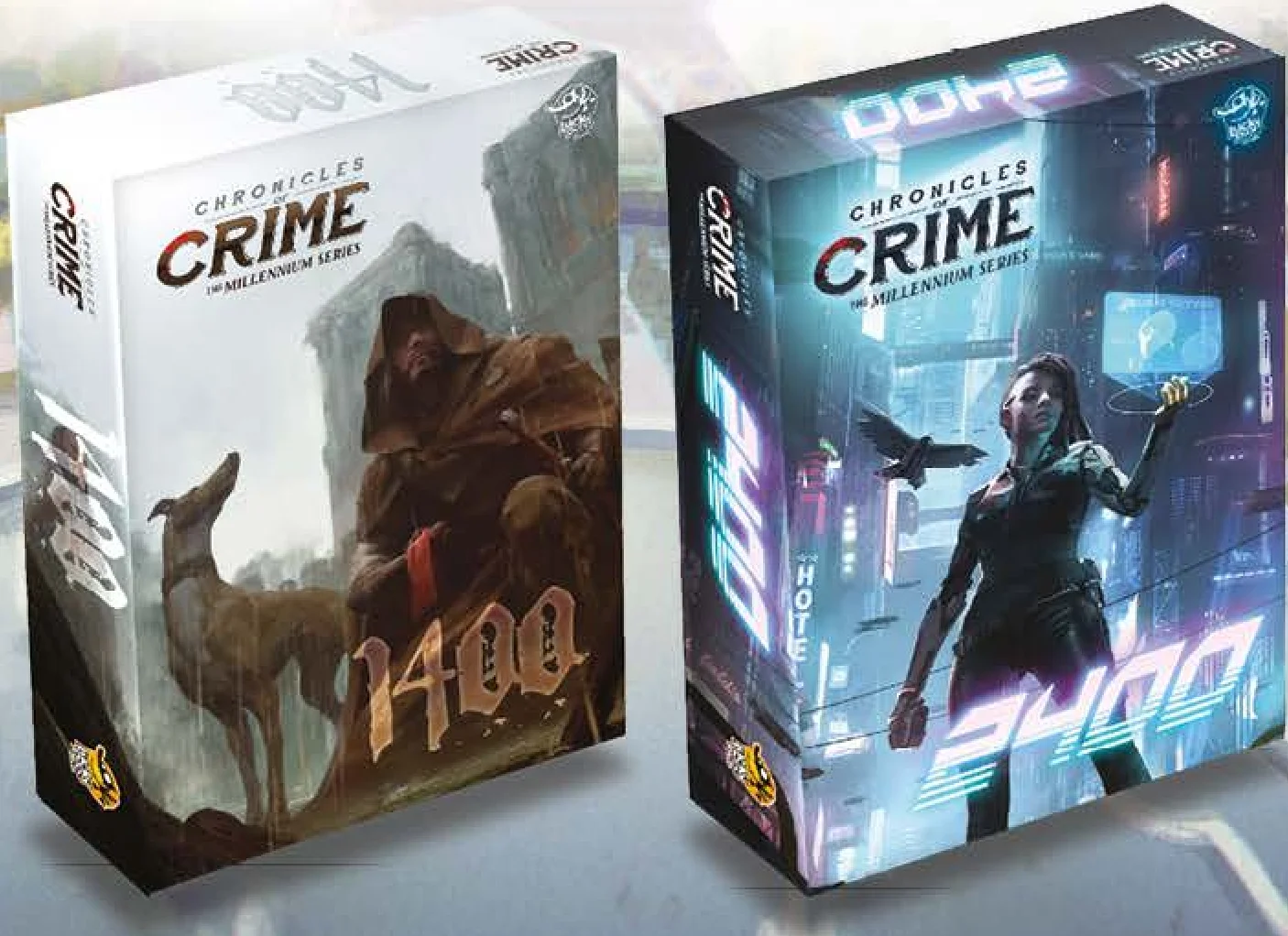
Released in 2021, Chronicles of Crime: 1900 is part of the Millennium Series, alongside standalone games set in 1400 and 2400. Each game uses the same core system while introducing its own universe and gameplay twists, with connecting narrative threads for players to discover across the series.
/pic7182955.jpg)
Board Game Rules for
Chronicles of Crime: 1900
Introduction
You are Victor Lavel, a young ambitious journalist working for a newspaper called “Les Nouvelles de Paris”. It’s the year 1900, the middle of the Belle Époque, and Paris flourishes. There are so many stories to cover! The Exposition Universelle, the Summer Olympics, the opening of the first metro station! But as a Lavel, a family famous for solving crimes since the Middle Ages, you are much more interested in murders, kidnappings, and robberies. Having a police commissioner as an uncle helps you to be among the first ones to know about them, and your wits often make you the first one to find the perpetrator.
Game Objective
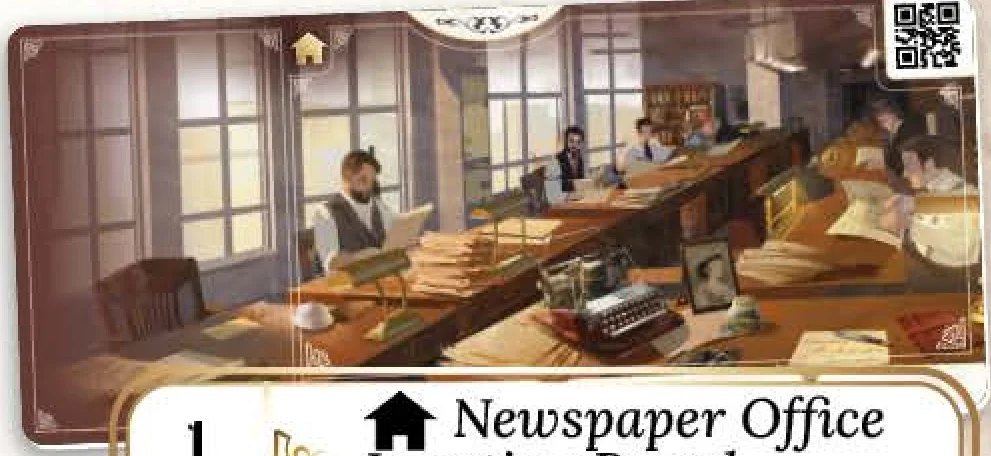
Each of the 4 scenarios offers a unique criminal investigation. The game is fully cooperative, and all players are working together to solve the mystery. The story will develop as you collect evidence and interrogate characters. When you feel you are ready to close the case, go to the  Newspaper Office and press the
  button. You’ll be asked a series of questions that will determine your score as a team.
Game Contents
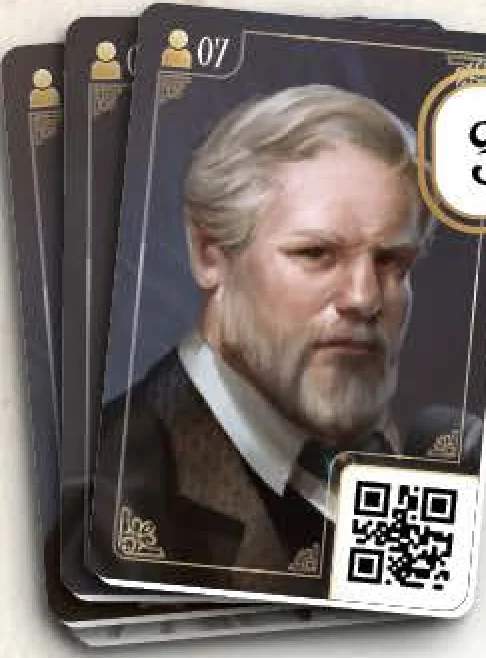
- 30 Character Cards
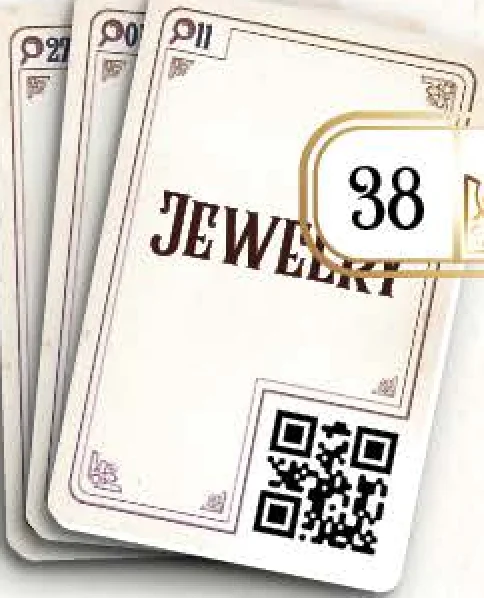
- 38 Evidence Category Cards
- 15 Special Item Cards
- 7 Double-sided Location Boards
- 1 Newspaper Office Location Board
- 1 Evidence Board
- 20 Puzzle cards
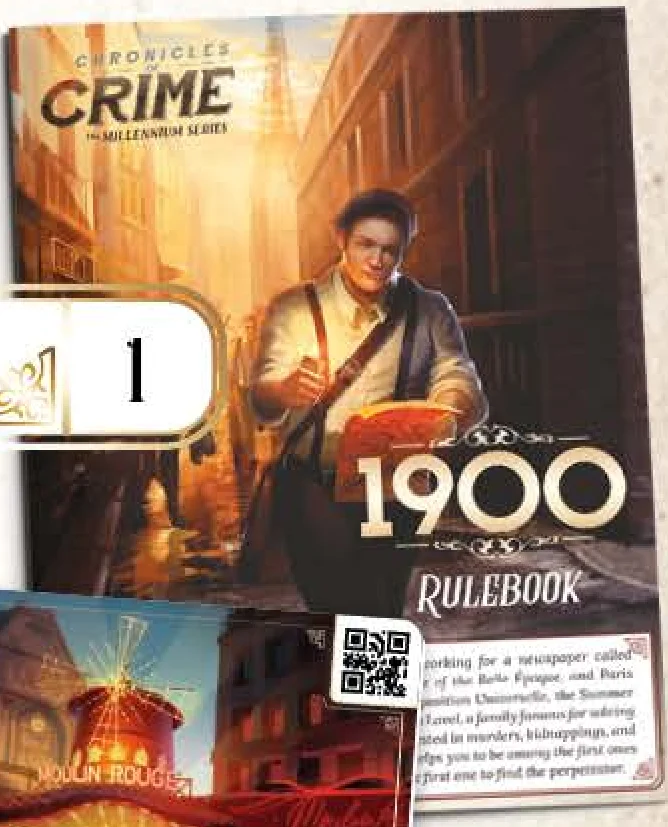
- 1 Rulebook




The Chronicles of Crime App
Chronicles of Crime requires a free app, which you can download from Apple’s App Store or Google Play (currently requires Android 5 or newer, iOS 10.0 or newer, may change in the future). You only need the app installed on one phone or tablet to play. It’s impossible to play without the app. Once downloaded, the app doesn’t require any internet connection during gameplay. The language can be changed within the app.
Setup Steps
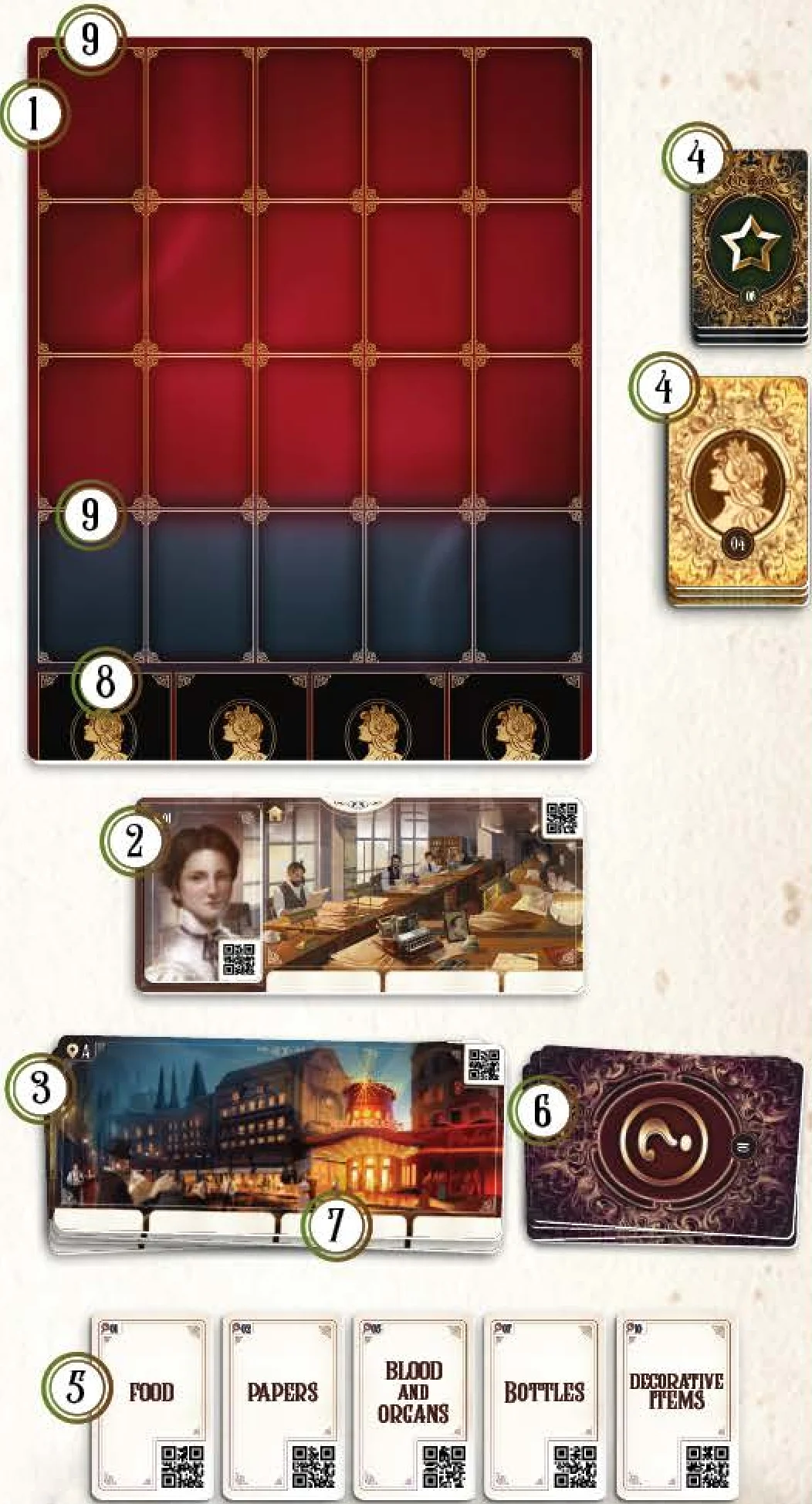
- Place the Evidence Board in the middle of the table.
- Place the Newspaper Office Location Board on the table and put Character card 01 (Charlotte) on it.
- Keep the other Location Boards in a pile. Reveal them and place them face up as you discover them during your investigations.
- Place Character cards and Special Item cards face down to the side of the Evidence Board.
- Place Evidence Category cards face up on the table in reach of the players. During the game you may search through these cards freely and sort them face up to find the one you need at the moment.
- Place Puzzle cards in a face-down pile.
Each Location Board has 4 Character slots, while the Evidence Board has 4 Unlocated Character slots and 20 Evidence slots (15 red and 5 blue ones).
Starting the Game
Once the game is set up, launch the app, choose 1900 in the main menu, and select the scenario you want to play.

NOTE: Try the short tutorial scenario to get familiar with the game. Instructions are explained in this scenario to understand how the game works.
Scanning Codes
You progress in Chronicles of Crime by scanning Location boards, along with Character, Evidence and Puzzle cards. When the scan window is displayed, point your device at any QR code on a card or a board. Then tap and hold anywhere on the screen to trigger the scan. Be advised that you can switch to the “auto-scan” feature in the  menu in the app.
The group should discuss together which card should be scanned.
- Scan a Location board: allows you to move to this location.
- Scan a Character card: allows you to interrogate the character. Once scanned, the Character can answer questions about any other Characters, Evidence or Puzzle cards. To do so, simply scan these cards and the Character will speak about them.
IMPORTANT! Keep in mind that Characters may never be asked about locations. Scanning a location during interrogation mode will finish the interrogation and move you to the indicated location instead.
You can exit interrogation mode by pressing the button.
 - Scan an Evidence Category card: allows you to pick up a clue that you have spotted. Extra details become available and, if it’s relevant to your case, the app will indicate that you should put it on the Evidence Board.
WARNING: In some rare cases, scanning may not work because of:
- the light in the room (e.g. sharp shadows)
- sleeved cards (causing reflection)
- the camera of the phone (e.g. if it is dirty)
Make sure the QR Code is inside the indicated square and hold the phone still so that the camera can focus. If the camera still can’t focus, try passing your hand in front of it to reset the focus.
Discovering Locations, Characters, Special Items or Puzzle Cards
Locations, Characters, Special Items and Puzzle cards should stay face down until explicitly named by the app. During the game, some of these cards will be revealed. These cards have the following symbols and a number or a letter:
 Character Cards
 Location Boards
 Special Item Cards
 Evidence Category Cards
 Puzzle Cards
- New Locations should be placed face-up on the table.
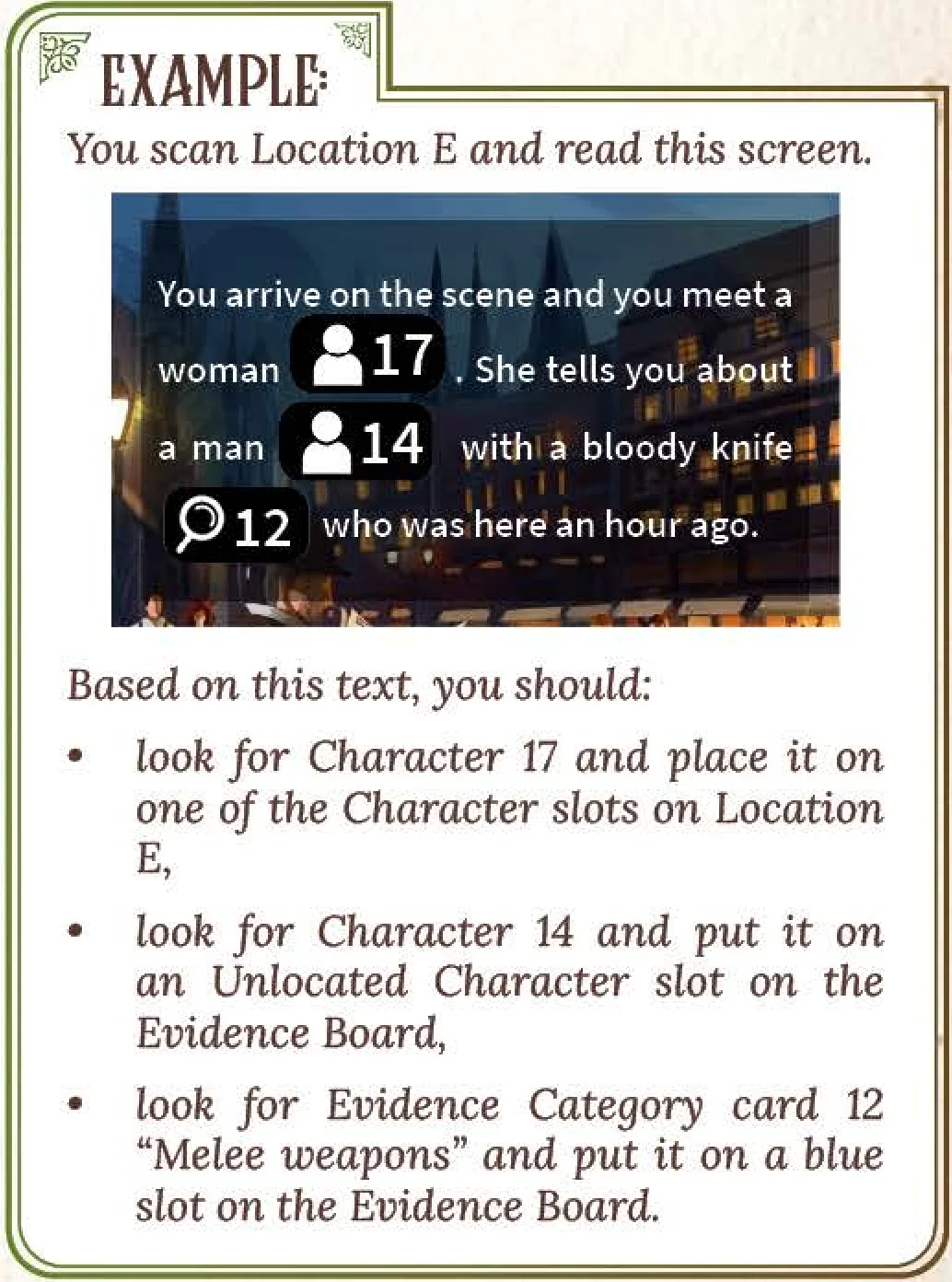
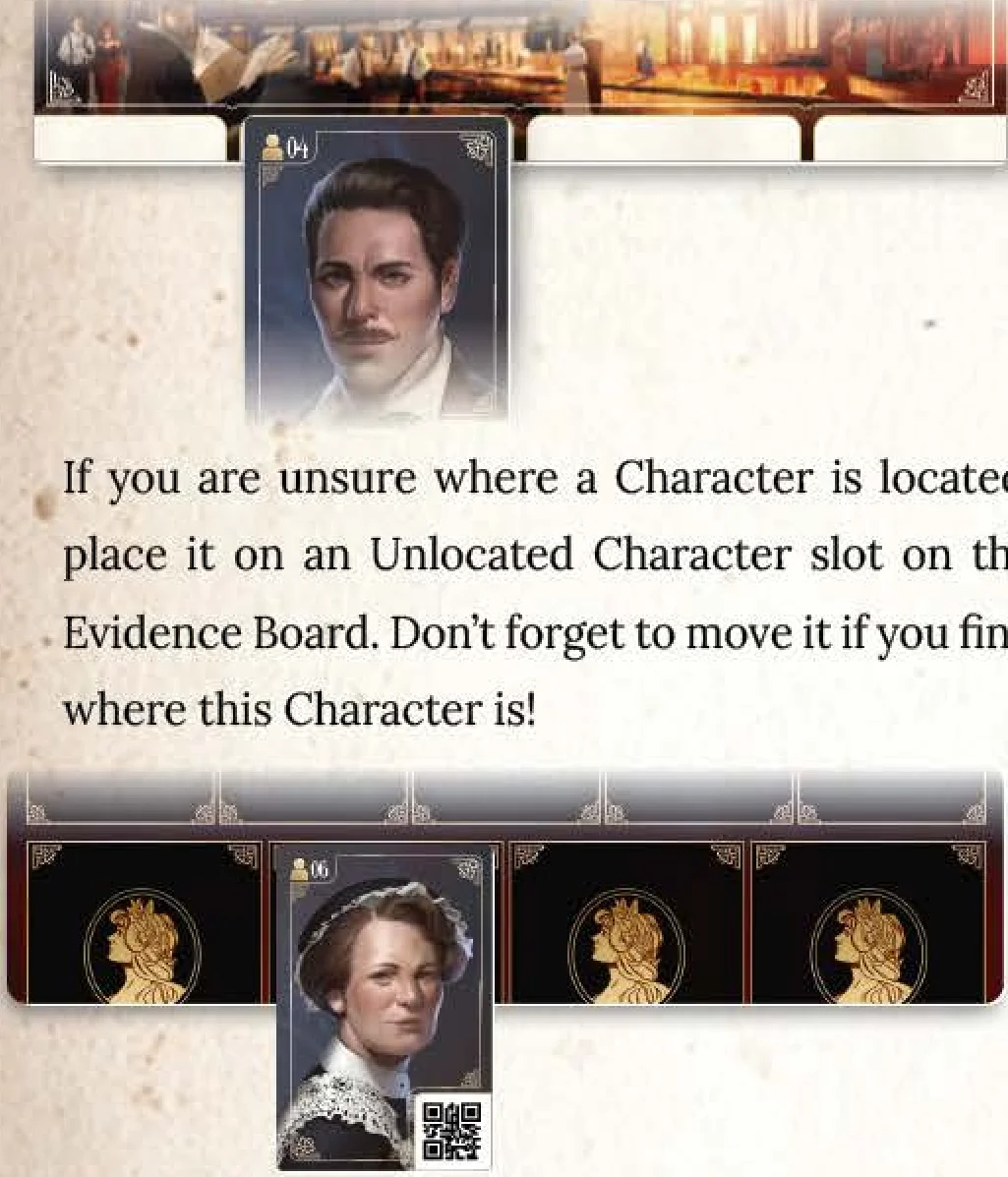
- New Characters should be placed on one of the 4 Character slots on the Location Board indicated. If you are unsure where a Character is located, place it on an Unlocated Character slot on the Evidence Board. Don’t forget to move it if you find where this Character is!
- Evidence Category cards are found in the
 mode. Only cards that correspond to an actual clue for your case are moved to the Evidence Board. See page 6 to find more about the mode.
The Evidence Board has two colored areas for Evidence Category and Special Item cards:- The red area is where you place all the Evidence Category and Special Item cards that you have found on the crime scene or have received from a Character.
- Sometimes, however, a Character may just tell you about Evidence without giving you the actual object. In this case, the app will instruct you to put the corresponding Evidence Category card or Special Item card in the blue area on the Evidence Board to indicate that you know about this object, but haven’t found it yet. If later in the game you happen to obtain this object, the app will ask you to move the Evidence Category card from the blue area to the red area.
- Special Item cards immediately go on the Evidence Board when revealed. The app will notify you if and when these come into play. Search the face-down stack and place them face-up on the Evidence Board. The app will specify if it’s the blue area or the red area. Note that some Special Item cards contain text or illustrations necessary for solving puzzles (similarly to Puzzle cards).
- Puzzle cards come into play after the app instructs you to reveal a card with a specific number. Search the face-down stack and place the Puzzle card face-up on the table. The cards contain text, symbols or illustrations necessary for solving various puzzles incorporated into the scenario. They usually also have a QR code, so you can ask characters about them the same way you ask about Evidence.
Time Passing and Events
In the world of Chronicles of Crime, time is very important. You can see the current time on the top right of the screen.
- Each time you scan an Evidence Category card, ask a Character a question or observe a crime scene, 5 minutes of in-game time passes.
- Each time you travel from one Location to another, 20 minutes of in-game time passes.
The in-game time that passes has an influence on the final scoring. The quicker you solve the case, the better score you will get.
In some scenarios, time passing in-game also means some situations can change, e.g. Characters can move, or be available only at specific times.
Time is not always your friend!
History
If you ever miss something, change the screen too fast, or simply need to check what was discovered before, use the “History” feature.
Click the in the lower left of your screen and then  to browse through all interactions and effects of scans you acquired during your investigation.
Crime Scene Investigation
Some Locations (like crime scenes) allow you to search for Evidence. Press the button to enter the search mode.
You can either search for Evidence:
- In panoramic view: Select this to experience the crime scene without extra devices.
- In 3D: To do so, place the glasses (sold separately) in the middle of the screen over the yellow line on the phone.

You have 40 seconds to look at the scene and describe what you see to other players. Physically turn around to check the Location in 360°. If you are not using the glasses, you can also observe the scene by swiping left, right, up or down. Other players need to pick matching Evidence Category cards that seem to correspond to what you describe. Make sure these cards are face-up and available to all players who are not using the app to search.
When the time runs out, you or another player can search for clues again. Note that this extra search will take more in-game time.
Finally, scan all the Evidence Category cards picked. The app will tell you which of the cards are useful clues to place on the Evidence Board. Put cards which are not useful now back into the pile. They may or may not be useful later.
Solving Puzzles
During the scenario, you’ll have to solve some escape room style puzzles to progress with your investigation. To do so, you’ll need to carefully look for information hidden on the Puzzle cards and some Special Item cards, in the Character’s dialogues, or even on the scenes visible in the mode. In most cases, at some point you’ll be asked to enter the solution into the app. For example, after scanning the “Keys and Locks” Evidence Category card representing a safe, you may be asked to enter a 3-digit combination that opens it. Or a character may ask you a question which you answer either by scanning a correct card or by choosing from the answers displayed on the screen. The solution to some other puzzles may be a piece of information critical for your investigations, like the name of the perpetrator. It will be useful while answering the final questions after you decide to press the button.
Asking Charlotte for Help
If you struggle with a puzzle, you can count on your colleague Charlotte who runs the “Puzzles and Riddles” column in your newspaper. You can usually find her in the Newspaper Office and may ask her about any Puzzle card or item connected to a puzzle (like the safe mentioned in the example above). First, she’ll inform you whether you already have all the elements necessary to solve the puzzle, or whether you should keep searching. If you do have them all and still can’t progress, she’ll ask if you’d like some help. If you agree (by pressing the  button in the app), she’ll give you a hint. If that’s still not enough, you can ask Charlotte about the card in question once more, and she’ll offer you a complete solution to the puzzle. But remember! Your score at the end of the game decreases by 10 points each time she gives you a hint, and another 10 points if you ask her to give you the full solution. But asking whether you’ve collected all the necessary elements of the puzzle doesn’t cost you anything.
Solving the Case
When you believe you have solved the case, you can go to the Newspaper Office location and press the button. As a journalist, you can’t arrest the suspects, so you just write an article about your findings to help the police and boost the newspaper’s sales. After you choose to solve the case, you’ll be asked a series of questions. To answer them, scan the cards that support your deductions. Your score will depend on your answers. After checking the score, you may choose to play the scenario again or you may press  to read the story.
Mini-Campaigns
Some scenarios form mini-campaigns. You can experience each scenario as a single game, but keep in mind that some parts of the story and characters are connected with previous scenarios. It may be a good idea to play all scenarios of a mini-campaign with the same group of people.
Game Credits
- Game Design: David Cicurel, Wojciech Grajkowski
- Writing: Tomasz Konatkowski, Wojciech Grajkowski
- Illustration: Karolina Jędrzejak, Aleksandra Wojtas, Matijos Gebreselassie, Mateusz Komada, Katarzyna Kosobucka
- Art Direction: Mateusz Komada
- Graphic Design: Katarzyna Kosobucka
- Lead Development: Wojciech Grajkowski
- Development: Grzegorz A. Nowak, Michał Gołębiowski
- Creative Director: Filip Miłuński
- Producer: Vincent Vergonjeanne
- Production Manager: Przemek Dołęgowski
- Programming: Marcin Musiał
- Playtesting Manager: Tomasz Napierała
- Playtesting: Wojciech Giżyński
- Proofreading: Russ Williams, Morgan Finley
Check out luckyduckgames.com for other exciting games from The Millennium Series.
Introduction & Objective
Introduction
You are Victor Lavel, a young ambitious journalist working for a newspaper called “Les Nouvelles de Paris”. It’s the year 1900, the middle of the Belle Époque, and Paris flourishes. There are so many stories to cover! The Exposition Universelle, the Summer Olympics, the opening of the first metro station! But as a Lavel, a family famous for solving crimes since the Middle Ages, you are much more interested in murders, kidnappings, and robberies. Having a police commissioner as an uncle helps you to be among the first ones to know about them, and your wits often make you the first one to find the perpetrator.
Game Objective
Each of the 4 scenarios offers a unique criminal investigation. The game is fully cooperative, and all players are working together to solve the mystery. The story will develop as you collect evidence and interrogate characters. When you feel you are ready to close the case, go to the Newspaper Office and press the button. You’ll be asked a series of questions that will determine your score as a team.
Components & Digital App
Game Contents
- 30 Character Cards
- 38 Evidence Category Cards
- 15 Special Item Cards
- 7 Double-sided Location Boards
- 1 Newspaper Office Location Board
- 1 Evidence Board
- 20 Puzzle cards
- 1 Rulebook
The Chronicles of Crime App
Chronicles of Crime requires a free app, which you can download from Apple’s App Store or Google Play (currently requires Android 5 or newer, iOS 10.0 or newer, may change in the future). You only need the app installed on one phone or tablet to play. It’s impossible to play without the app. Once downloaded, the app doesn’t require any internet connection during gameplay. The language can be changed within the app.
Setup
Setup Steps
- Place the Evidence Board in the middle of the table.
- Place the Newspaper Office Location Board on the table and put Character card 01 (Charlotte) on it.
- Keep the other Location Boards in a pile. Reveal them and place them face up as you discover them during your investigations.
- Place Character cards and Special Item cards face down to the side of the Evidence Board.
- Place Evidence Category cards face up on the table in reach of the players. During the game you may search through these cards freely and sort them face up to find the one you need at the moment.
- Place Puzzle cards in a face-down pile.
Each Location Board has 4 Character slots, while the Evidence Board has 4 Unlocated Character slots and 20 Evidence slots (15 red and 5 blue ones).
How to Play
Starting the Game
Once the game is set up, launch the app, choose 1900 in the main menu, and select the scenario you want to play.
NOTE: Try the short tutorial scenario to get familiar with the game. Instructions are explained in this scenario to understand how the game works.
Scanning Codes
You progress in Chronicles of Crime by scanning Location boards, along with Character, Evidence and Puzzle cards. When the scan window is displayed, point your device at any QR code on a card or a board. Then tap and hold anywhere on the screen to trigger the scan. Be advised that you can switch to the “auto-scan” feature in the menu in the app.
The group should discuss together which card should be scanned.
- Scan a Location board: allows you to move to this location.
- Scan a Character card: allows you to interrogate the character. Once scanned, the Character can answer questions about any other Characters, Evidence or Puzzle cards. To do so, simply scan these cards and the Character will speak about them.
IMPORTANT! Keep in mind that Characters may never be asked about locations. Scanning a location during interrogation mode will finish the interrogation and move you to the indicated location instead.
You can exit interrogation mode by pressing the button. - Scan an Evidence Category card: allows you to pick up a clue that you have spotted. Extra details become available and, if it’s relevant to your case, the app will indicate that you should put it on the Evidence Board.
WARNING: In some rare cases, scanning may not work because of:
- the light in the room (e.g. sharp shadows)
- sleeved cards (causing reflection)
- the camera of the phone (e.g. if it is dirty)
Make sure the QR Code is inside the indicated square and hold the phone still so that the camera can focus. If the camera still can’t focus, try passing your hand in front of it to reset the focus.
Discovering Locations, Characters, Special Items or Puzzle Cards
Locations, Characters, Special Items and Puzzle cards should stay face down until explicitly named by the app. During the game, some of these cards will be revealed. These cards have the following symbols and a number or a letter:
- Character Cards
- Location Boards
- Special Item Cards
- Evidence Category Cards
- Puzzle Cards
- New Locations should be placed face-up on the table.
- New Characters should be placed on one of the 4 Character slots on the Location Board indicated. If you are unsure where a Character is located, place it on an Unlocated Character slot on the Evidence Board. Don’t forget to move it if you find where this Character is!
- Evidence Category cards are found in the mode. Only cards that correspond to an actual clue for your case are moved to the Evidence Board. See page 6 to find more about the mode.
The Evidence Board has two colored areas for Evidence Category and Special Item cards:- The red area is where you place all the Evidence Category and Special Item cards that you have found on the crime scene or have received from a Character.
- Sometimes, however, a Character may just tell you about Evidence without giving you the actual object. In this case, the app will instruct you to put the corresponding Evidence Category card or Special Item card in the blue area on the Evidence Board to indicate that you know about this object, but haven’t found it yet. If later in the game you happen to obtain this object, the app will ask you to move the Evidence Category card from the blue area to the red area.
- Special Item cards immediately go on the Evidence Board when revealed. The app will notify you if and when these come into play. Search the face-down stack and place them face-up on the Evidence Board. The app will specify if it’s the blue area or the red area. Note that some Special Item cards contain text or illustrations necessary for solving puzzles (similarly to Puzzle cards).
- Puzzle cards come into play after the app instructs you to reveal a card with a specific number. Search the face-down stack and place the Puzzle card face-up on the table. The cards contain text, symbols or illustrations necessary for solving various puzzles incorporated into the scenario. They usually also have a QR code, so you can ask characters about them the same way you ask about Evidence.
Time Passing and Events
In the world of Chronicles of Crime, time is very important. You can see the current time on the top right of the screen.
- Each time you scan an Evidence Category card, ask a Character a question or observe a crime scene, 5 minutes of in-game time passes.
- Each time you travel from one Location to another, 20 minutes of in-game time passes.
The in-game time that passes has an influence on the final scoring. The quicker you solve the case, the better score you will get.
In some scenarios, time passing in-game also means some situations can change, e.g. Characters can move, or be available only at specific times.
Time is not always your friend!
History
If you ever miss something, change the screen too fast, or simply need to check what was discovered before, use the “History” feature.
Click the in the lower left of your screen and then to browse through all interactions and effects of scans you acquired during your investigation.
Searching for Clues
Crime Scene Investigation
Some Locations (like crime scenes) allow you to search for Evidence. Press the button to enter the search mode.
You can either search for Evidence:
- In panoramic view: Select this to experience the crime scene without extra devices.
- In 3D: To do so, place the glasses (sold separately) in the middle of the screen over the yellow line on the phone.
You have 40 seconds to look at the scene and describe what you see to other players. Physically turn around to check the Location in 360°. If you are not using the glasses, you can also observe the scene by swiping left, right, up or down. Other players need to pick matching Evidence Category cards that seem to correspond to what you describe. Make sure these cards are face-up and available to all players who are not using the app to search.
When the time runs out, you or another player can search for clues again. Note that this extra search will take more in-game time.
Finally, scan all the Evidence Category cards picked. The app will tell you which of the cards are useful clues to place on the Evidence Board. Put cards which are not useful now back into the pile. They may or may not be useful later.
Puzzles & Charlotte's Help
Solving Puzzles
During the scenario, you’ll have to solve some escape room style puzzles to progress with your investigation. To do so, you’ll need to carefully look for information hidden on the Puzzle cards and some Special Item cards, in the Character’s dialogues, or even on the scenes visible in the mode. In most cases, at some point you’ll be asked to enter the solution into the app. For example, after scanning the “Keys and Locks” Evidence Category card representing a safe, you may be asked to enter a 3-digit combination that opens it. Or a character may ask you a question which you answer either by scanning a correct card or by choosing from the answers displayed on the screen. The solution to some other puzzles may be a piece of information critical for your investigations, like the name of the perpetrator. It will be useful while answering the final questions after you decide to press the button.
Asking Charlotte for Help
If you struggle with a puzzle, you can count on your colleague Charlotte who runs the “Puzzles and Riddles” column in your newspaper. You can usually find her in the Newspaper Office and may ask her about any Puzzle card or item connected to a puzzle (like the safe mentioned in the example above). First, she’ll inform you whether you already have all the elements necessary to solve the puzzle, or whether you should keep searching. If you do have them all and still can’t progress, she’ll ask if you’d like some help. If you agree (by pressing the button in the app), she’ll give you a hint. If that’s still not enough, you can ask Charlotte about the card in question once more, and she’ll offer you a complete solution to the puzzle. But remember! Your score at the end of the game decreases by 10 points each time she gives you a hint, and another 10 points if you ask her to give you the full solution. But asking whether you’ve collected all the necessary elements of the puzzle doesn’t cost you anything.
End of Game & Mini-Campaigns
Solving the Case
When you believe you have solved the case, you can go to the Newspaper Office location and press the button. As a journalist, you can’t arrest the suspects, so you just write an article about your findings to help the police and boost the newspaper’s sales. After you choose to solve the case, you’ll be asked a series of questions. To answer them, scan the cards that support your deductions. Your score will depend on your answers. After checking the score, you may choose to play the scenario again or you may press to read the story.
Mini-Campaigns
Some scenarios form mini-campaigns. You can experience each scenario as a single game, but keep in mind that some parts of the story and characters are connected with previous scenarios. It may be a good idea to play all scenarios of a mini-campaign with the same group of people.
Credits
Game Credits
- Game Design: David Cicurel, Wojciech Grajkowski
- Writing: Tomasz Konatkowski, Wojciech Grajkowski
- Illustration: Karolina Jędrzejak, Aleksandra Wojtas, Matijos Gebreselassie, Mateusz Komada, Katarzyna Kosobucka
- Art Direction: Mateusz Komada
- Graphic Design: Katarzyna Kosobucka
- Lead Development: Wojciech Grajkowski
- Development: Grzegorz A. Nowak, Michał Gołębiowski
- Creative Director: Filip Miłuński
- Producer: Vincent Vergonjeanne
- Production Manager: Przemek Dołęgowski
- Programming: Marcin Musiał
- Playtesting Manager: Tomasz Napierała
- Playtesting: Wojciech Giżyński
- Proofreading: Russ Williams, Morgan Finley
Check out luckyduckgames.com for other exciting games from The Millennium Series.