Under Falling Skies
2020
Use dice, expand your underground base, and resist the alien invasion city by city in a tense solo campaign.
40
minutes
1 - 1
player(s)
12+
Medium

About this board game
Under Falling Skies is a solo board game for one player, with an average play time of 40 minutes, in which you defend Earth from an invading alien force.
Enemy ships fill the skies as humanity retreats into underground bunkers beneath cities around the globe. In each mission, you take charge of defending a besieged city and must complete your objective before your base is destroyed.
Your actions are powered by an innovative dice placement mechanic. Choosing an action also determines which enemy ships will descend: higher numbers provide stronger effects, but they make the ships descend faster. Every decision therefore balances immediate benefits against the growing threat overhead.
- Expand your underground base to unlock more powerful actions.
- Shoot down enemy ships and deploy robots to increase your workforce.
- Develop your research while carefully monitoring your energy supply.
- Endure the rising tension as the mothership moves closer each round.
The game includes a multi-mission campaign that lets you fight the invaders city by city. Build a team from around the globe, stand against the common threat, and work toward saving the planet.
Originally based on a print-and-play game that won the 2019 9-card Nanogame P&P Design Contest, Under Falling Skies expands the same core mechanics into a full-scale campaign. Its 2020 release offers hours of intense solo play across a series of connected missions.
Board Game Rules for
Under Falling Skies
We don’t know what they are. We don’t know where they came from. We don’t know why they are attacking.
All we know is that they’re here, we must find a way to stop them, and time is running out.
Under Falling Skies is a solo game of dice management and tough decisions. To win, you will need to defend your city and complete your research before the alien mothership destroys your base.

This setup includes everything you will use in your first game. All these components are packed in the top part of your box.
Leave the campaign chapters in the box until you are ready to start the campaign. A packing diagram is on the back page of this rulebook.

Components for First Game
- Dice: 2 white dice and 3 gray dice. Your first game uses only these dice.
- Markers & Trackers:
Research marker: Place on starting space of research track.
Energy marker: Place on starting space of energy track.
Damage marker: Place on starting space of damage track.
Excavator: Place on starting space in base.

Sky and City Board Setup
- Mothership tile: Place this tile at the top.
- 5 purple ships: Place one purple ship on each drop point.
- 4 white ships: Set the white ships off to one side. These are additional ships that may spawn during play.
- 4 sky tiles: Place sky tiles in order, with darker tiles on top and lighter ones closer to you.
This setup is for an easy game. To play on normal difficulty instead, flip over one sky tile at random to its more threatening side. - Roswell city tile: Use Roswell as the city tile in your first game, blue side up.
- Base tile A: Use the side on which the A matches the icon shown on Roswell. Place the tile as shown.
- Base tile B: Use the side on which the B matches the icon shown on Roswell. Place it at the bottom.

These components are not used in your first game: New York city tile, Washington, DC city tile, base tile C, 1 orange ship (used in campaign), and 2 blue dice. They will be explained later.
Your goal is to get your research marker to the top of the research track before the aliens destroy your city. You lose if your damage marker reaches the bottom of its track or if the mothership descends to the row marked with a skull.
Each round of the game has three phases:
- Dice Phase: Place dice and move ships.
- Rooms Phase: Resolve the effects of your chosen rooms.
- Mothership Phase: Resolve the mothership’s turn.
Phase Steps
- Roll all 5 dice (3 gray and 2 white).
- Place each die in a different column of your base.
Each time you place a die:
- All ships in that column descend by the amount shown on the die.
- Some effects may be triggered.
- After placing a white die, reroll all dice not yet placed.
You will place two white dice, so you must reroll twice – or only once, if you save a white die for last. When you are done, you will have one die in each column. These dice will power various effects during the Rooms Phase.
The Excavator
The excavator follows a path winding down through your base, from row to row. It divides your base into two parts: all spaces on the path behind the excavator are excavated; all other spaces are not yet excavated.
- Only one die can be placed on a space ahead of the excavator. All other dice must be placed on excavated spaces.
- The only reason to place a die in an unexcavated space is to move the excavator there during the Rooms Phase.
- Before placing it, count the spaces from the excavator to that space: your die must have this value or higher.
- Note: A die used to move the excavator must still follow the rule of one die per column.

Enemy Ship Actions
Each time you place a die, all enemy ships in that column descend a number of spaces equal to the amount shown on the die …
… unless the die is placed in an AA gun room. These rooms fill the sky with anti-aircraft fire, causing enemy ships to descend more cautiously: ships in this column descend one space less than the amount shown on the die. If the die is a
, the ships do not descend and do not trigger effects.
Immediately after all ships in the column descend, they trigger any effects on their resulting spaces. Ignore spaces they pass through. If multiple ships are in the column, move them simultaneously, then resolve their effects, starting at the top.
Triggered Effects
Shift Arrow: Move the ship into the space the arrow points to. Exception: If that space already has a ship in it, the arrow has no effect.
Mothership Descent: Move the mothership tile down one row. If it moves into a row with ships (of any color), return them to the mothership to respawn later.
If the mothership tile descends to the row marked by the skull, you lose immediately. Otherwise, you ignore the mothership actions (the symbols along the right edge of the board).
Explosion Space: This is not a triggered effect. Explosions like this mark spaces where ships can be shot down by your fighters in the next phase.
Damage
If a ship descends below the sky, it hits your city and your base takes damage. Move the damage marker down one space.
After damaging your city, the ship victoriously returns to the mothership to be respawned at the end of the round.
If the damage marker moves onto the skull icon, you have lost the game.

In this phase, you resolve the effect of each die you placed. Remove the die to show its effect has been resolved. Dice may be resolved in any order.
Dice cannot be added together, unless they are sharing a multi-space room. If you choose to not use a particular die, you must still remove it.
Room Rules & Costs
Costs
Many rooms have an energy cost. For example, a room requiring 2 energy requires you to pay 2 energy to use it. You pay the energy by moving your energy marker on the energy track. If you don’t want to pay or can’t pay, remove the die with no effect.
Value of a Room
The value of a room is the amount shown on the die, plus or minus the room’s modifier (if it has one). For example, a die showing 3 in a -1 room has value 3 − 1 = 2.
Note: A room’s modifier does not affect the movement of enemy ships in the Dice Phase.
Multi-Space Rooms
If a room takes up multiple spaces, it can be used only if all of its spaces have dice. The value is the sum of the dice, plus or minus any modifiers (e.g., 1 + 6 − 3 = 4). If any space of a multi-space room is left empty, remove its dice with no effect.


Excavated Room Effects
AA Gun Rooms: They have no effect in the Rooms Phase. Simply remove the die.
Excavated Tunnels: Have no effect. Simply remove the die.
Energy Rooms: Generate energy to power other effects. Add the value of the room to your energy. If this would move your marker off the track, set your energy to the maximum value.
Jet Fighter Rooms: Shoot down one or more enemy ships. Destroy all enemy ships on explosion spaces with a number less than or equal to the value of this room. Purple ships return to the mothership to respawn; white ships are removed from the board.
Research Rooms: Advance on the research track (how you win). Move up one or more spaces on the research track; the sum of the numbers on these spaces must be less than or equal to the value of the room. For example, to pass over a 2 and end your move on a 3, you need a room with value 5 or better.

Examples of Room Resolution
Example – Shooting Down Ships: During the Dice Phase, you maneuvered 3 enemy ships onto explosion spaces. In the Rooms Phase, you resolve a jet fighter room with value 3:
- Ship A (purple, on explosion 3) is shot down and goes to the mothership to await respawn.
- Ship B (white, on explosion 2) is shot down and removed from the board.
- Ship C (on explosion 4) is not shot down because its number is higher than 3. It remains in the sky.

Example – Researching: You have two dice in research rooms: one with value 2, and one with value 3 (die 4 with a −1 modifier). Your research marker faces spaces that cost 1, 3, and 1. Can you advance three spaces? No, because rooms resolve separately. Resolving the value 2 room first moves you one space (cost 1). The value 3 room can then move you to space 3, but that is where you stop.
Excavating Your Base
In the Dice Phase, you were allowed to place at most one die in an unexcavated space. In the Rooms Phase, that die can be used to move the excavator:
- Pay 1 energy (cost depicted on the excavator).
- Remove the die and move the excavator to the die’s space.
- All spaces behind the excavator are now excavated.
Reminder: The number of spaces moved must be less than or equal to the die value.

The Mothership Phase has 3 steps:
- Move the mothership: The mothership moves down to the next row. If there are any ships in that row, put them on the mothership (the dark half of the tile). They will respawn in step 3.
- Resolve the mothership action: Perform the action at the drop points.
- Spawn ships: Spawn ships from the mothership back into the sky.
Mothership Actions
Move Excavator Backwards: Move the excavator backwards the indicated number of spaces (stop if it tries to move behind its starting space).
Move Research Marker Down: Move your research marker down the indicated number of spaces.
Add White Ships: Place the indicated number of white ships on the mothership to spawn at the end of this phase.
City Takes Damage: Your base takes one damage.
Immediate Defeat (Skull): If the mothership tile’s drop points reach the row marked by the skull, you lose immediately. Unlike other mothership actions, this applies even when the mothership moves in the Dice Phase.

Spawning Ships
During the round, ships may have been placed on the mothership. At this time, those ships must be spawned on drop points. Spawn them all, unless the drop points get filled up first:
- Spawn purple ships before white.
- First, choose among drop points in columns with no ships.
- When every column has a ship, choose the drop point that is farthest from the highest ship in its column.
If these rules leave multiple options, the choice is yours. If all 5 drop points fill up, any unspawned ships remain on the mothership for another round.
White Ships
- White ships spawn after purple ships.
- White ships return to the mothership if they hit your city.
- White ships are removed from the board if they are shot down.
- If all white ships are on the board, ignore an effect that tries to add more.

- Winning: If your marker reaches the top of the research track, you win immediately.
Note: The only way to get to the space marked 11 is to use a multi-space research room in the lower half of your base. - Losing: If the mothership descends to the row with the skull, you lose immediately. You also lose immediately if your base takes maximum damage.
You can stop reading here and play your first game!
Now we’ll look at new elements that give variety before starting the campaign: threat levels, city abilities, and robots.
Threat Level
Each sky tile has two sides; one is more threatening. The threat level of your game is the number of sky tiles set to the more threatening side:
- Threat Level 0: Easy game (setup from pages 2–3).
- Threat Level 1: Standard difficulty (flip 1 random sky tile).
- Threat Levels 2 to 4: Increased difficulty (flip 2, 3, or 4 random sky tiles).

Cities & Damaged City
Except for Roswell, each city has a special ability modifying the rules for the game duration. Each city is paired with a specific set of base tiles (A/B or B/C) with different tracks and rooms.
Each city has an undamaged (blue) and damaged (orange/red) side. If you lose a game, you may flip the city over to its damaged side for a second attempt—its ability is stronger. Flipped sky tiles for threat level should be re-randomized.

Robots
A robot is a blue die that stays in your base across rounds. Robots are never rolled and never placed in the Dice Phase; they stay where they are installed and do their work in the Rooms Phase.
Installing Robots
- Robot rooms make robots: Set a blue die to the value of the room (max 6).
- Immediately install your new robot in an empty space of an excavated room.
- Newly installed robots are exhausted (cannot be used this round). Rotate the die 45 degrees.
You are limited to 2 robot dice, but you may remove a robot from the board at any time. Installing a robot does not cause enemy ships to move.
Worker Dice in the Dice Phase
The gray and white dice placed in the Dice Phase are called worker dice. You still place one worker die per column, ignoring robot dice. If you want to place a worker die where a robot die is, remove the robot.
Robot Dice in the Rooms Phase
Robots from previous rounds power effects like worker dice, with these exceptions:
- After resolving the robot die, leave it on the board.
- Decrease its value by 1. (If it reaches 0 / was 1, remove it.)
- Rotate the robot 45 degrees to show it is exhausted.
- At the end of the Rooms Phase, rotate all exhausted robots back to upright.
Special Cases for Robots
- If used in a robot room, you may reuse that same robot die as the new robot.
- Installing a robot in an AA gun room does nothing.
- If the excavator moves backward, remove any robots caught in unexcavated rooms.
- In a multi-space room, an exhausted robot acts as an empty space (the room cannot be used).

Under Falling Skies can also be played as a four-chapter campaign lasting about 10 games, fully replayable. The chapters are packed in order in separate bundles.
Chapter Briefing & Choose Your Battle
- Read the chapter briefing scene and information.
- Open the chapter and make two piles, each with a random scenario, city, and character from the chapter. Return remaining items to the box for now.
- Choose one of the two piles to fight.
- The unchosen pile is lost: city annihilated, character and scenario removed from the campaign into a separate bag.

Scenarios & Characters
- Scenarios: Provide special rules for that battle.
- Characters: Have special abilities usable once per game. Set the character aside once used. Use the blue side in the chapter where you meet them; the upgraded side is unlocked in later chapters.

Playing the Campaign
- Fold a sheet from the score pad to make your campaign notebook and write a campaign name.
- Record the city, scenario, and character for your first battle.
- Play the first game:
- If you win, record the threat level in the first box.
- If you lose, record an X in the first box, then play a second game using the city’s damaged side (with the same scenario and character). Record the result of the second game.
- Generate two new piles from remaining components, pick one, and fight your second battle.

Removing or Saving Components
- Permanently remove: unchosen piles, finished scenarios (win or lose), and cities where you lost two games.
- Save for later chapters: cities you won in, and characters you played with.
Threat Level: Play the campaign at a threat level you find challenging yet winnable; adjust between games if needed.
Spice Up Your Standalone Game
Campaign components can also create custom standalone battles. Choose any city (undamaged or damaged), any scenario or none, any team of characters, and combine basic and advanced sky tiles.
Difficulty Rating
Difficulty is calculated using black and yellow stars:
- Each black star on a sky tile: +1 difficulty
- Using a scenario: +1 difficulty
- Each upgraded character: −1 difficulty (cancels a black star)
- Damaged cities and non-upgraded characters: −0.5 difficulty each (half a yellow star)
Game Difficulty = Total Black Stars − Total Yellow Stars
The total number of black + yellow stars indicates how epic the game is!

Box Organization
Please do not dump out everything in this box. The game has been carefully packed with the four-chapter campaign at the bottom. Remove the starting components at the top, and leave the campaign in the box for now.

Credits
A game by Tomáš Uhlíř
- Art Direction: Filip Murmak
- Artwork: Kwanchai Moriya, Petr Boháček
- Supporting Artists: Jakub Politzer, Dávid Jablonovský
- Typesetting: František Horálek
- 3D Modeling: Radim Pech
- Production: Vít Vodička
- Rulebook Writer: Jason Holt
- Project Management: Jan Zvoníček
- Project Supervisor: Petr Murmak
© Czech Games Edition, October 2020 – www.CzechGames.com
For more info, visit www.ufs-solo.game
Introduction & Setup
We don’t know what they are. We don’t know where they came from. We don’t know why they are attacking.
All we know is that they’re here, we must find a way to stop them, and time is running out.
Under Falling Skies is a solo game of dice management and tough decisions. To win, you will need to defend your city and complete your research before the alien mothership destroys your base.

This setup includes everything you will use in your first game. All these components are packed in the top part of your box.
Leave the campaign chapters in the box until you are ready to start the campaign. A packing diagram is on the back page of this rulebook.

Components for First Game
- Dice: 2 white dice and 3 gray dice. Your first game uses only these dice.
- Markers & Trackers:
Research marker: Place on starting space of research track.
Energy marker: Place on starting space of energy track.
Damage marker: Place on starting space of damage track.
Excavator: Place on starting space in base.

Sky and City Board Setup
- Mothership tile: Place this tile at the top.
- 5 purple ships: Place one purple ship on each drop point.
- 4 white ships: Set the white ships off to one side. These are additional ships that may spawn during play.
- 4 sky tiles: Place sky tiles in order, with darker tiles on top and lighter ones closer to you.
This setup is for an easy game. To play on normal difficulty instead, flip over one sky tile at random to its more threatening side. - Roswell city tile: Use Roswell as the city tile in your first game, blue side up.
- Base tile A: Use the side on which the A matches the icon shown on Roswell. Place the tile as shown.
- Base tile B: Use the side on which the B matches the icon shown on Roswell. Place it at the bottom.

These components are not used in your first game: New York city tile, Washington, DC city tile, base tile C, 1 orange ship (used in campaign), and 2 blue dice. They will be explained later.
How to Play: Dice Phase
Your goal is to get your research marker to the top of the research track before the aliens destroy your city. You lose if your damage marker reaches the bottom of its track or if the mothership descends to the row marked with a skull.
Each round of the game has three phases:
- Dice Phase: Place dice and move ships.
- Rooms Phase: Resolve the effects of your chosen rooms.
- Mothership Phase: Resolve the mothership’s turn.
Phase Steps
- Roll all 5 dice (3 gray and 2 white).
- Place each die in a different column of your base.
Each time you place a die:
- All ships in that column descend by the amount shown on the die.
- Some effects may be triggered.
- After placing a white die, reroll all dice not yet placed.
You will place two white dice, so you must reroll twice – or only once, if you save a white die for last. When you are done, you will have one die in each column. These dice will power various effects during the Rooms Phase.
The Excavator
The excavator follows a path winding down through your base, from row to row. It divides your base into two parts: all spaces on the path behind the excavator are excavated; all other spaces are not yet excavated.
- Only one die can be placed on a space ahead of the excavator. All other dice must be placed on excavated spaces.
- The only reason to place a die in an unexcavated space is to move the excavator there during the Rooms Phase.
- Before placing it, count the spaces from the excavator to that space: your die must have this value or higher.
- Note: A die used to move the excavator must still follow the rule of one die per column.

Enemy Ship Actions
Each time you place a die, all enemy ships in that column descend a number of spaces equal to the amount shown on the die …
… unless the die is placed in an AA gun room. These rooms fill the sky with anti-aircraft fire, causing enemy ships to descend more cautiously: ships in this column descend one space less than the amount shown on the die. If the die is a
, the ships do not descend and do not trigger effects.
Immediately after all ships in the column descend, they trigger any effects on their resulting spaces. Ignore spaces they pass through. If multiple ships are in the column, move them simultaneously, then resolve their effects, starting at the top.
Triggered Effects
Shift Arrow: Move the ship into the space the arrow points to. Exception: If that space already has a ship in it, the arrow has no effect.
Mothership Descent: Move the mothership tile down one row. If it moves into a row with ships (of any color), return them to the mothership to respawn later.
If the mothership tile descends to the row marked by the skull, you lose immediately. Otherwise, you ignore the mothership actions (the symbols along the right edge of the board).
Explosion Space: This is not a triggered effect. Explosions like this mark spaces where ships can be shot down by your fighters in the next phase.
Damage
If a ship descends below the sky, it hits your city and your base takes damage. Move the damage marker down one space.
After damaging your city, the ship victoriously returns to the mothership to be respawned at the end of the round.
If the damage marker moves onto the skull icon, you have lost the game.

How to Play: Rooms Phase
In this phase, you resolve the effect of each die you placed. Remove the die to show its effect has been resolved. Dice may be resolved in any order.
Dice cannot be added together, unless they are sharing a multi-space room. If you choose to not use a particular die, you must still remove it.
Room Rules & Costs
Costs
Many rooms have an energy cost. For example, a room requiring 2 energy requires you to pay 2 energy to use it. You pay the energy by moving your energy marker on the energy track. If you don’t want to pay or can’t pay, remove the die with no effect.
Value of a Room
The value of a room is the amount shown on the die, plus or minus the room’s modifier (if it has one). For example, a die showing 3 in a -1 room has value 3 − 1 = 2.
Note: A room’s modifier does not affect the movement of enemy ships in the Dice Phase.
Multi-Space Rooms
If a room takes up multiple spaces, it can be used only if all of its spaces have dice. The value is the sum of the dice, plus or minus any modifiers (e.g., 1 + 6 − 3 = 4). If any space of a multi-space room is left empty, remove its dice with no effect.


Excavated Room Effects
AA Gun Rooms: They have no effect in the Rooms Phase. Simply remove the die.
Excavated Tunnels: Have no effect. Simply remove the die.
Energy Rooms: Generate energy to power other effects. Add the value of the room to your energy. If this would move your marker off the track, set your energy to the maximum value.
Jet Fighter Rooms: Shoot down one or more enemy ships. Destroy all enemy ships on explosion spaces with a number less than or equal to the value of this room. Purple ships return to the mothership to respawn; white ships are removed from the board.
Research Rooms: Advance on the research track (how you win). Move up one or more spaces on the research track; the sum of the numbers on these spaces must be less than or equal to the value of the room. For example, to pass over a 2 and end your move on a 3, you need a room with value 5 or better.

Examples of Room Resolution
Example – Shooting Down Ships: During the Dice Phase, you maneuvered 3 enemy ships onto explosion spaces. In the Rooms Phase, you resolve a jet fighter room with value 3:
- Ship A (purple, on explosion 3) is shot down and goes to the mothership to await respawn.
- Ship B (white, on explosion 2) is shot down and removed from the board.
- Ship C (on explosion 4) is not shot down because its number is higher than 3. It remains in the sky.

Example – Researching: You have two dice in research rooms: one with value 2, and one with value 3 (die 4 with a −1 modifier). Your research marker faces spaces that cost 1, 3, and 1. Can you advance three spaces? No, because rooms resolve separately. Resolving the value 2 room first moves you one space (cost 1). The value 3 room can then move you to space 3, but that is where you stop.
Excavating Your Base
In the Dice Phase, you were allowed to place at most one die in an unexcavated space. In the Rooms Phase, that die can be used to move the excavator:
- Pay 1 energy (cost depicted on the excavator).
- Remove the die and move the excavator to the die’s space.
- All spaces behind the excavator are now excavated.
Reminder: The number of spaces moved must be less than or equal to the die value.

How to Play: Mothership Phase
The Mothership Phase has 3 steps:
- Move the mothership: The mothership moves down to the next row. If there are any ships in that row, put them on the mothership (the dark half of the tile). They will respawn in step 3.
- Resolve the mothership action: Perform the action at the drop points.
- Spawn ships: Spawn ships from the mothership back into the sky.
Mothership Actions
Move Excavator Backwards: Move the excavator backwards the indicated number of spaces (stop if it tries to move behind its starting space).
Move Research Marker Down: Move your research marker down the indicated number of spaces.
Add White Ships: Place the indicated number of white ships on the mothership to spawn at the end of this phase.
City Takes Damage: Your base takes one damage.
Immediate Defeat (Skull): If the mothership tile’s drop points reach the row marked by the skull, you lose immediately. Unlike other mothership actions, this applies even when the mothership moves in the Dice Phase.

Spawning Ships
During the round, ships may have been placed on the mothership. At this time, those ships must be spawned on drop points. Spawn them all, unless the drop points get filled up first:
- Spawn purple ships before white.
- First, choose among drop points in columns with no ships.
- When every column has a ship, choose the drop point that is farthest from the highest ship in its column.
If these rules leave multiple options, the choice is yours. If all 5 drop points fill up, any unspawned ships remain on the mothership for another round.
White Ships
- White ships spawn after purple ships.
- White ships return to the mothership if they hit your city.
- White ships are removed from the board if they are shot down.
- If all white ships are on the board, ignore an effect that tries to add more.

End of Game
- Winning: If your marker reaches the top of the research track, you win immediately.
Note: The only way to get to the space marked 11 is to use a multi-space research room in the lower half of your base. - Losing: If the mothership descends to the row with the skull, you lose immediately. You also lose immediately if your base takes maximum damage.
You can stop reading here and play your first game!
Full Game Rules: Threat Levels, Cities & Robots
Now we’ll look at new elements that give variety before starting the campaign: threat levels, city abilities, and robots.
Threat Level
Each sky tile has two sides; one is more threatening. The threat level of your game is the number of sky tiles set to the more threatening side:
- Threat Level 0: Easy game (setup from pages 2–3).
- Threat Level 1: Standard difficulty (flip 1 random sky tile).
- Threat Levels 2 to 4: Increased difficulty (flip 2, 3, or 4 random sky tiles).

Cities & Damaged City
Except for Roswell, each city has a special ability modifying the rules for the game duration. Each city is paired with a specific set of base tiles (A/B or B/C) with different tracks and rooms.
Each city has an undamaged (blue) and damaged (orange/red) side. If you lose a game, you may flip the city over to its damaged side for a second attempt—its ability is stronger. Flipped sky tiles for threat level should be re-randomized.

Robots
A robot is a blue die that stays in your base across rounds. Robots are never rolled and never placed in the Dice Phase; they stay where they are installed and do their work in the Rooms Phase.
Installing Robots
- Robot rooms make robots: Set a blue die to the value of the room (max 6).
- Immediately install your new robot in an empty space of an excavated room.
- Newly installed robots are exhausted (cannot be used this round). Rotate the die 45 degrees.
You are limited to 2 robot dice, but you may remove a robot from the board at any time. Installing a robot does not cause enemy ships to move.
Worker Dice in the Dice Phase
The gray and white dice placed in the Dice Phase are called worker dice. You still place one worker die per column, ignoring robot dice. If you want to place a worker die where a robot die is, remove the robot.
Robot Dice in the Rooms Phase
Robots from previous rounds power effects like worker dice, with these exceptions:
- After resolving the robot die, leave it on the board.
- Decrease its value by 1. (If it reaches 0 / was 1, remove it.)
- Rotate the robot 45 degrees to show it is exhausted.
- At the end of the Rooms Phase, rotate all exhausted robots back to upright.
Special Cases for Robots
- If used in a robot room, you may reuse that same robot die as the new robot.
- Installing a robot in an AA gun room does nothing.
- If the excavator moves backward, remove any robots caught in unexcavated rooms.
- In a multi-space room, an exhausted robot acts as an empty space (the room cannot be used).

Campaign Mode
Under Falling Skies can also be played as a four-chapter campaign lasting about 10 games, fully replayable. The chapters are packed in order in separate bundles.
Chapter Briefing & Choose Your Battle
- Read the chapter briefing scene and information.
- Open the chapter and make two piles, each with a random scenario, city, and character from the chapter. Return remaining items to the box for now.
- Choose one of the two piles to fight.
- The unchosen pile is lost: city annihilated, character and scenario removed from the campaign into a separate bag.

Scenarios & Characters
- Scenarios: Provide special rules for that battle.
- Characters: Have special abilities usable once per game. Set the character aside once used. Use the blue side in the chapter where you meet them; the upgraded side is unlocked in later chapters.

Playing the Campaign
- Fold a sheet from the score pad to make your campaign notebook and write a campaign name.
- Record the city, scenario, and character for your first battle.
- Play the first game:
- If you win, record the threat level in the first box.
- If you lose, record an X in the first box, then play a second game using the city’s damaged side (with the same scenario and character). Record the result of the second game.
- Generate two new piles from remaining components, pick one, and fight your second battle.

Removing or Saving Components
- Permanently remove: unchosen piles, finished scenarios (win or lose), and cities where you lost two games.
- Save for later chapters: cities you won in, and characters you played with.
Threat Level: Play the campaign at a threat level you find challenging yet winnable; adjust between games if needed.
Custom Standalone Games, Organization & Credits
Spice Up Your Standalone Game
Campaign components can also create custom standalone battles. Choose any city (undamaged or damaged), any scenario or none, any team of characters, and combine basic and advanced sky tiles.
Difficulty Rating
Difficulty is calculated using black and yellow stars:
- Each black star on a sky tile: +1 difficulty
- Using a scenario: +1 difficulty
- Each upgraded character: −1 difficulty (cancels a black star)
- Damaged cities and non-upgraded characters: −0.5 difficulty each (half a yellow star)
Game Difficulty = Total Black Stars − Total Yellow Stars
The total number of black + yellow stars indicates how epic the game is!

Box Organization
Please do not dump out everything in this box. The game has been carefully packed with the four-chapter campaign at the bottom. Remove the starting components at the top, and leave the campaign in the box for now.

Credits
A game by Tomáš Uhlíř
- Art Direction: Filip Murmak
- Artwork: Kwanchai Moriya, Petr Boháček
- Supporting Artists: Jakub Politzer, Dávid Jablonovský
- Typesetting: František Horálek
- 3D Modeling: Radim Pech
- Production: Vít Vodička
- Rulebook Writer: Jason Holt
- Project Management: Jan Zvoníček
- Project Supervisor: Petr Murmak
© Czech Games Edition, October 2020 – www.CzechGames.com
For more info, visit www.ufs-solo.game
Expansions for
Under Falling Skies
Under Falling Skies: Kyiv City promo tile
2022
A Kyiv promo tile with two research-based worker-die effects.
Medium Heavy
View expansion
Under Falling Skies: Essen City promo tile
2021
A 2021 Essen promo tile that rewards research rooms with bonus tokens
Medium Heavy
View expansion
Under Falling Skies: Berlin City promo tile
2021
A Berlin city tile with two research-based worker placement effects.
40
minutes
Medium Heavy
View expansion
Under Falling Skies: Prague City Promo Tile
2021
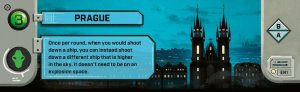
A Prague city tile with two powerful ship-targeting alternatives
40
minutes
View expansion